Download available IGTV videos from Instagram /tv/ links for free. Preview the video and save its MP4 file, with no screen recording or extra app needed.
Paste a full /tv/ link to download the video while it remains accessible.
Video and sound in one MP4
Save the video with its existing audio, ready to play on your device.
Keep the source quality
Save the quality Instagram provides, including the video's existing audio. Navos adds no extra compression.
Free, with no daily limit
Download without a fee per file, a daily download cap or credit card details.
No added watermarks
Save photos and videos without a Navos logo or overlay added to the file.
No app to install
Use your iPhone, Android phone, PC or Mac browser. No downloader app or extension needed.
No Instagram password needed
Use the post link without sharing your Instagram password with Navos.
Take the idea further
Use Navos AI on your PC or Mac to turn your references into ideas and original scripts.
01How it works
How to download IGTV videos
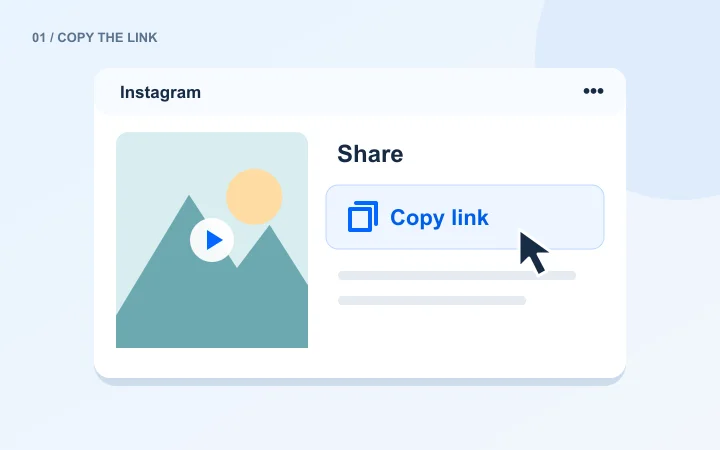
1Copy the complete IGTV URL
Use the full /tv/ link from your bookmark or page, including the media code.
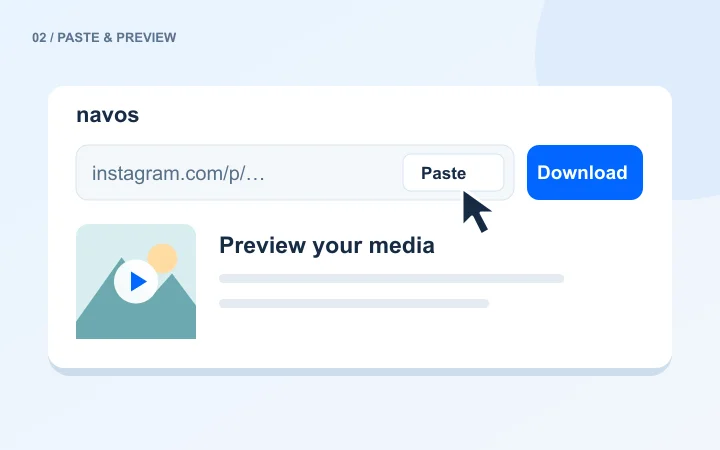
2Check the current media result
Paste the link and sign in to Navos. If no playable file appears, check the original content’s availability.
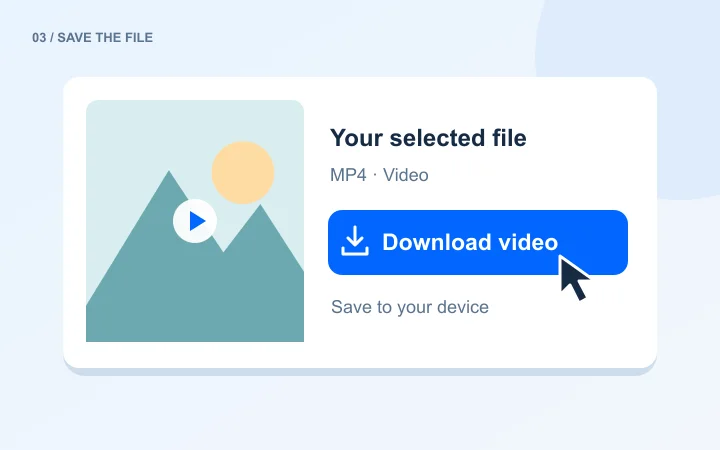
3Save the confirmed video
Choose Download video and open the file from your download list. The source aspect ratio and available audio remain with it.
02IGTV
Download videos from your saved IGTV links
Bookmarks and reference documents may still contain Instagram’s older /tv/ URLs. Navos recognizes that link format and attempts to retrieve the video file that is currently available for the post.
A recognized URL does not prove the content is still accessible. Deleted videos, private accounts or access restrictions can prevent a download. File length and resolution depend on the media returned.
Saving an Instagram post in the app is different from downloading a file. Your browser saves the media to your device; it may not appear in your photo library automatically.
iPhone / iPad
1.
Open the downloader in Safari, paste your link and sign in to Navos.
2.
Choose a file from the results. Look in Safari’s download list or the Files app.
3.
To add it to your photo library, open the downloaded file and use the save option available in the system share menu.
Android
1.
Open the downloader in Chrome or another browser and submit the public link.
2.
Choose the photo or video you want and follow the browser’s download prompt.
3.
Find the file in Downloads or your file manager. Whether it appears in your gallery depends on your device and save location.
Windows / Mac
1.
Paste the complete link into a desktop browser and sign in to see the results.
2.
Save a single video, or download the carousel and Highlight items you want individually.
3.
Open your browser’s download list or Downloads folder. The destination follows your browser settings.
05Questions, answered
A download not working? Start here.
A failed download is not always a bad URL. The original post, the media service and your browser can each affect the result.
The content is unavailable
Open the original Instagram link first. Check that the post still exists and is public. The downloader cannot recover deleted content or bypass a private account.
Stories show a service error
The service’s Instagram session may need renewal. Signing in to Google again or trying another username will not fix a service-side session. Try later or use another media type.
The preview loads, but the download fails
Media URLs can expire. Parse the original Instagram link again, then download the fresh result. Also check browser download prompts, your connection and available device storage.
Only part of a carousel or collection is visible
Use Show more files to view the remaining items, then download the ones you need. Saving the first preview does not save the whole collection.
06Questions, answered
Frequently asked questions
Your questions about free downloads, file quality and saving on a phone or computer, answered.
Is the Instagram downloader free?
Yes. Navos lets you preview and download Instagram media for free. There is no charge per file and no credit card is needed.
How many Instagram downloads can I make?
Navos does not set a daily download count for this tool. Save another post whenever you need it. Temporary service limits or unavailable source content can still interrupt a request.
Do I need to install an app?
No. Use the downloader in your phone or computer browser. Preview a result and save the file directly; no browser extension or downloader app is required.
Will every old IGTV link work?
No. The /tv/ format is recognized, but the original post must still be publicly accessible and the provider must return a media file.
Does the downloader trim long IGTV videos?
It saves the available video returned by the service and does not offer trimming. Confirm the actual content using the preview and downloaded file; arbitrary video lengths are not guaranteed.
Do I need to sign in to use the Instagram downloader?
Yes. Sign in to Navos with Google before media parsing starts. You do not need to give the downloader your Instagram password or session cookie, and no credit card is required.
Can I download Instagram videos in HD or 4K?
The downloader uses the best available file returned for the public content. Resolution depends on that source: not every post has a 1080p or 4K version. It does not upscale media or guarantee the creator’s pre-upload original. Smaller preview images help the page load faster without replacing the download file.
Does downloading add a watermark?
You can download the watermark-free version when the source provides one. Captions, stickers, logos and marks embedded in the source remain; this is a media downloader, not an image-editing tool.
Why does an Instagram link fail to parse?
Check that you copied a complete post, Reel or other supported media link, not a search page. Deleted posts, private accounts, access restrictions and temporary service failures can prevent parsing. Stories also depend on content availability and the service’s Instagram session.
Does one download button save an entire album?
Each button saves one media file. Preview a carousel or Highlight collection, then download the items you need individually. The current tool does not offer a one-click ZIP export or a full-account backup.
Can I download private or deleted Instagram content?
No. The tool handles currently accessible public media. It cannot bypass private-account permissions, recover deleted posts or restore Stories that are no longer available.
Can I repost or use a downloaded file commercially?
Downloading a file does not grant permission to republish or use it commercially. Save content you own or have permission to use, and keep any required creator credits and permission records. Navos is not affiliated with Instagram or Meta.
Where can I find my downloaded files?
iPhone / iPad: To add it to your photo library, open the downloaded file and use the save option available in the system share menu. Android: Find the file in Downloads or your file manager. Whether it appears in your gallery depends on your device and save location. Windows / Mac: Open your browser’s download list or Downloads folder. The destination follows your browser settings.
Which links can I use for older IGTV videos?
Download available IGTV videos from Instagram /tv/ links for free. Preview the video and save its MP4 file, with no screen recording or extra app needed. instagram.com/tv/IGTV_CODE/
AFTER THE DOWNLOAD · YOUR NEXT IDEA
Turn inspiration into your next creative idea
Explore hooks, develop original scripts and find creators with Navos AI.